
Publish and share
Publish a Keboola app and share it with your team or external users.
Once your app is ready, publish it and share the link with the people who need it.
Publish the app
Section titled “Publish the app”An app is “published” once it’s deployed and reachable at its URL, with the right people able to open it:
-
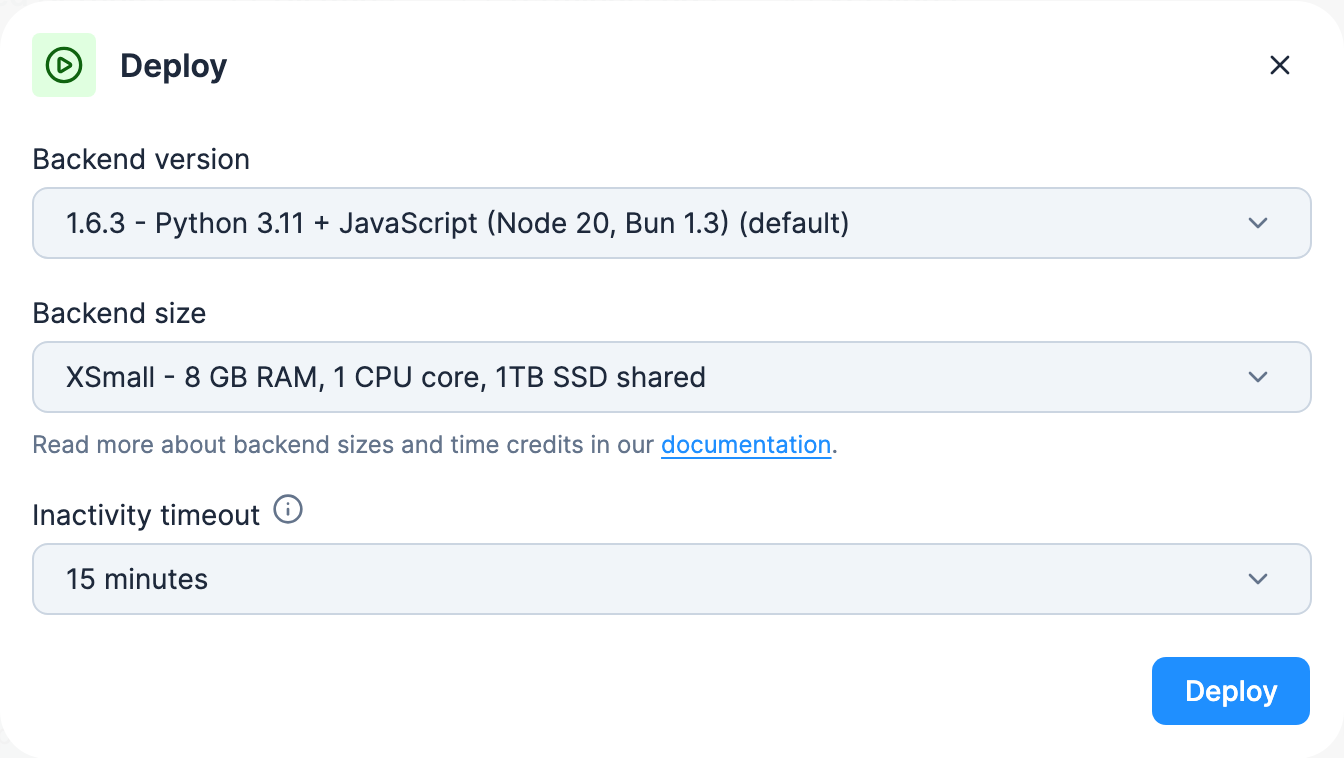
Deploy the app. From the app’s configuration, click Deploy. A short wizard asks for the backend version, the backend size (not on pay-as-you-go projects) and an inactivity timeout; click Deploy in the wizard, and once the status turns Active, the app is served at its public URL. See App actions.
-
Set authentication. Choose who can open it — a shared password, SSO, GitHub, and more. See Authentication.
-
Share the URL. Anyone who passes the app’s authentication can open it.
Share with your team
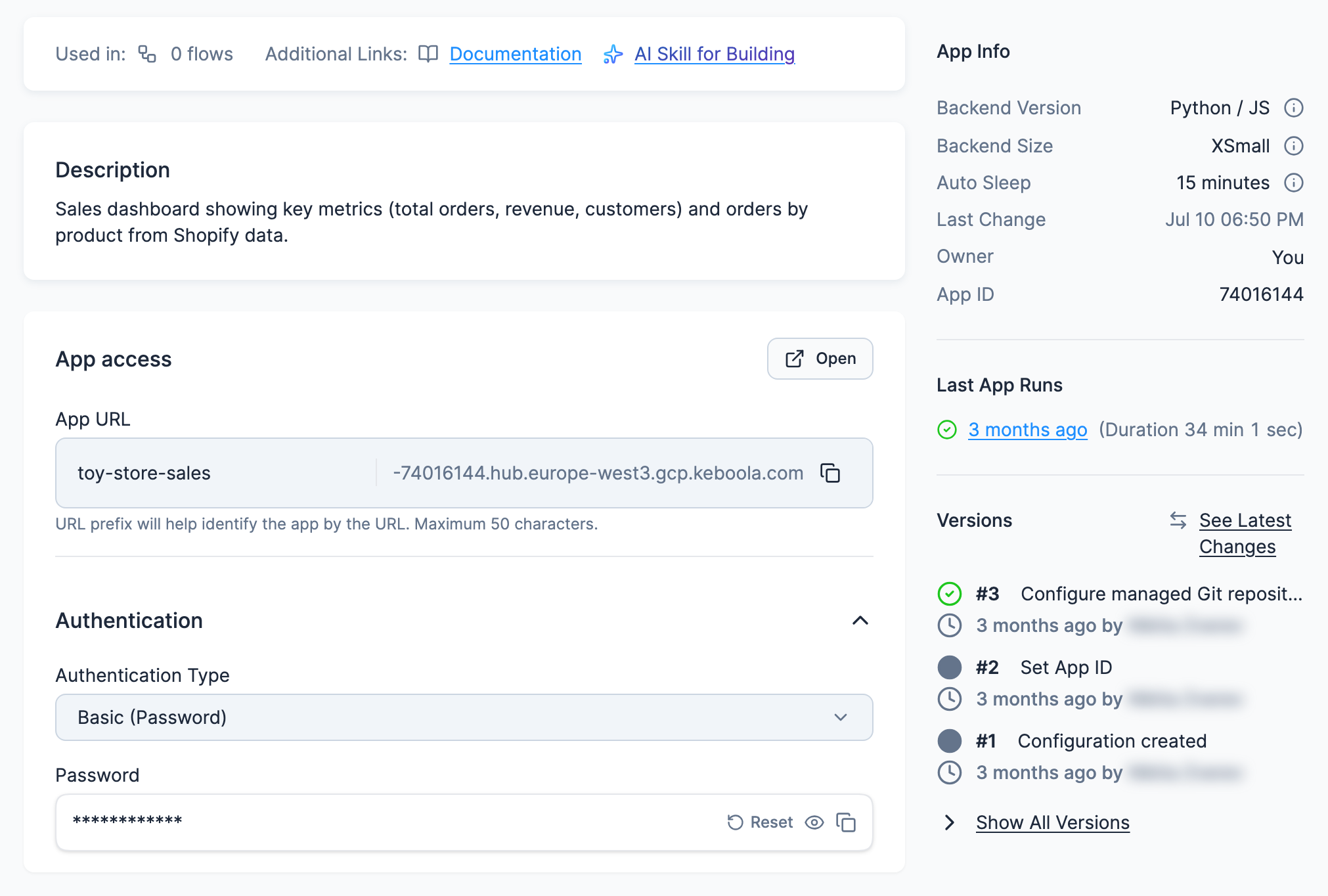
Section titled “Share with your team”Copy the app URL from the app’s Overview tab. It’s in the App access card: the App URL block shows the URL prefix plus a generated part, and its copy button (Copy the address) copies the whole URL. Once the app has been deployed, the card’s own Open button, at its top right, opens the app in a new tab. Before the first deploy there’s no Open, and the card shows a notice such as Not deployed yet. Deploy it to get an address you can share.
The app’s authentication decides who gets in once they have the link. If the app is asleep, the first visit wakes it; Stop, start, sleep has the details.
With Basic (Password), share the password too. It’s in the same card, in the Password field under Authentication: hidden until you click the eye icon, with a copy button that copies it even while it’s hidden. If the card shows a notice asking you to deploy, start or redeploy the app instead of the field, do that first; it generates the password. Reset replaces it with a new password after you confirm, and the old one stops working for everyone who has it, usually within a minute.
Manage a deployed app
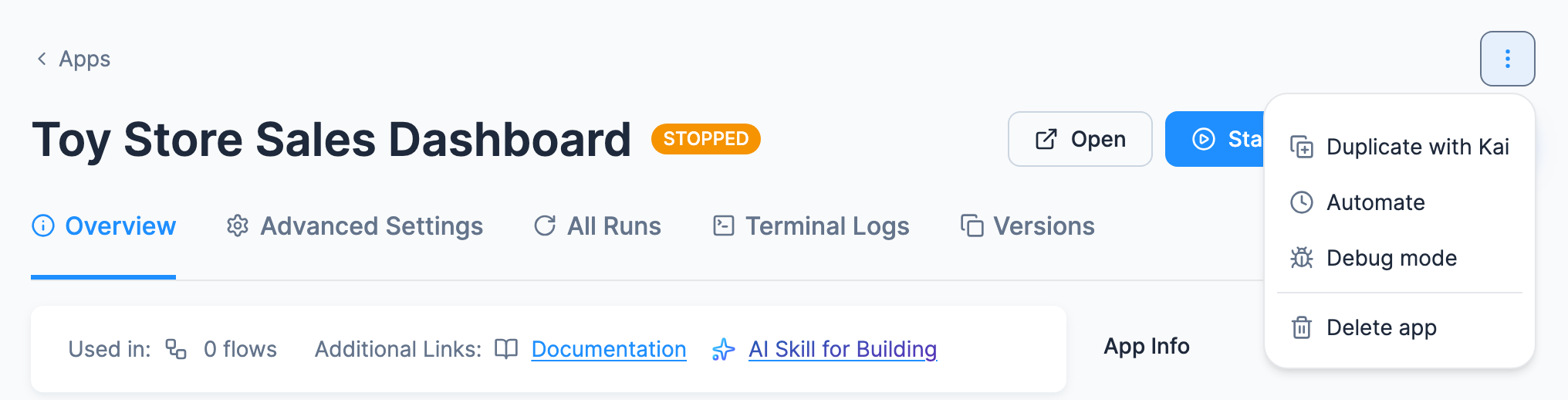
Section titled “Manage a deployed app”From the app’s header you can click Open and Start or Redeploy, depending on its state, and Edit with Kai on a Python/JS app with a Keboola-managed repository if you can edit the app and Kai can build apps in the project. The ⋮ (More actions) menu holds the rest: Duplicate with Kai (Duplicate on apps without a Keboola-managed repository), Automate (start it on a schedule), Debug mode and Delete app, plus Pause app while the app is running. Operate and update an app walks through each one.